
To change your password when you are already logged in to the new Here Comes the Bus (HCTB) app, follow these steps:
Note: If you have forgotten your password and need to reset it, see Resetting a Forgotten Password from the Login Screen Using the New App.
- On any HCTB screen with the main menu at the bottom, tap Profile. (Tap Back if needed to return to such a page.)

Note: If you don't see the Profile item in the menu, tap More and then select Profile. (The More menu contains pages that don't fit on the main menu.)
The Profile screen will appear.
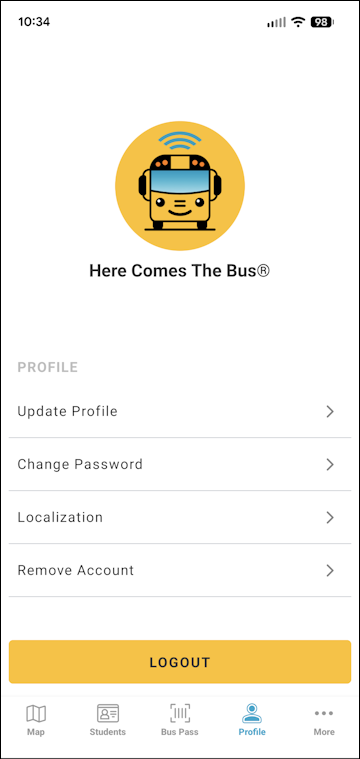
- Tap Change Password.
The Change Password screen will appear.
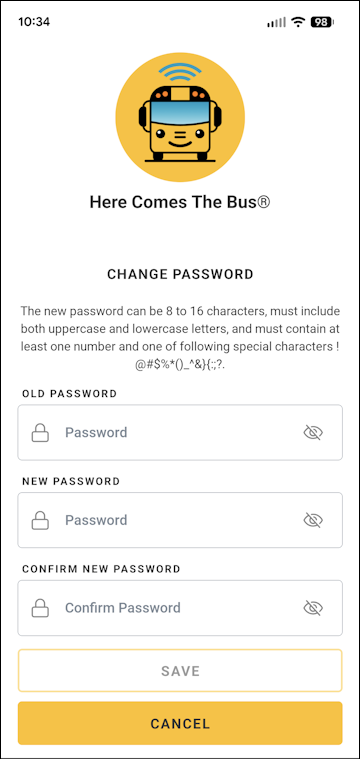
- Type your current password in the Old Password field.
Note: You can select if you'd like to verify the characters you entered.
 - Type your new password in both the New Password and Confirm New Password fields.
Note: The password must be between 8 and 16 characters and contain at least one of each of the following: an uppercase letter, a lowercase letter, a number, and a special character. - Tap Save.
A success dialog box will appear.
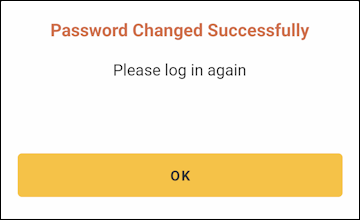
- Tap OK.
You will receive an email informing you that your password has changed, and in the app, you'll be returned to the login screen, where you can use the new password to log in. (See Logging In to and Out of the New HCTB App for details, if needed.)