
This article covers how to log in to the all-new Here Comes the Bus (HCTB) app in the first section below — and how to log out in the second section.
Note: If you don't have a Here Comes the Bus account (and HCTB is being offered by your school district), you can create one by using the procedure at Creating an Account with the New App.
Logging In
To log in to your HCTB account, follow these steps:
- Open Here Comes the Bus from your list of apps.

You'll be presented with the first login screen.
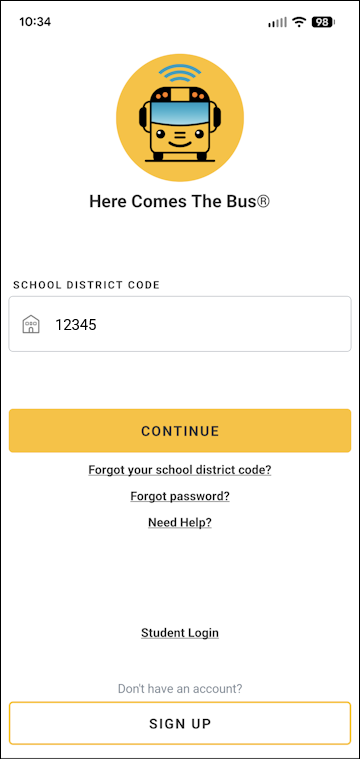
- If needed, tap in the School District Code field and type your district's code, which is usually a five-digit number.
Note: Your code will likely already be filled in for you, as the app saves these from the account-creation process and from previous logins. - Tap Continue.
The second login screen will appear.
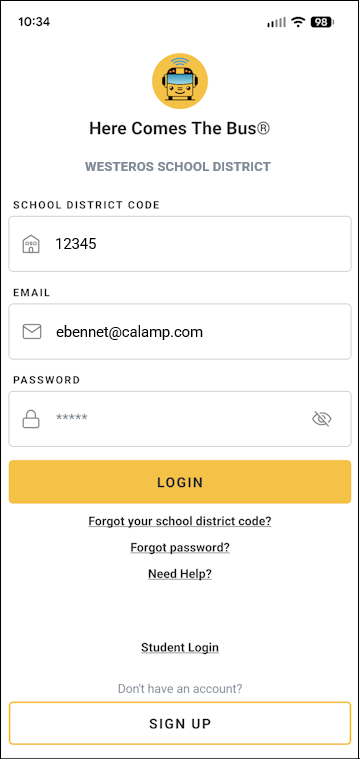
- If needed, tap in the Email field and type the email address you used when creating your account.
Note: Your email address will also likely be provided, as the app default setting is to remember it. - Tap in the Password field and type your password.
Note: You can select if you'd like to verify the characters you entered.
If you've forgotten your password and need to reset it, tap Forgot Password? and follow the onscreen instructions. (See Resetting a Forgotten Password from the Login Screen Using the New App for more details.) - Tap Login.
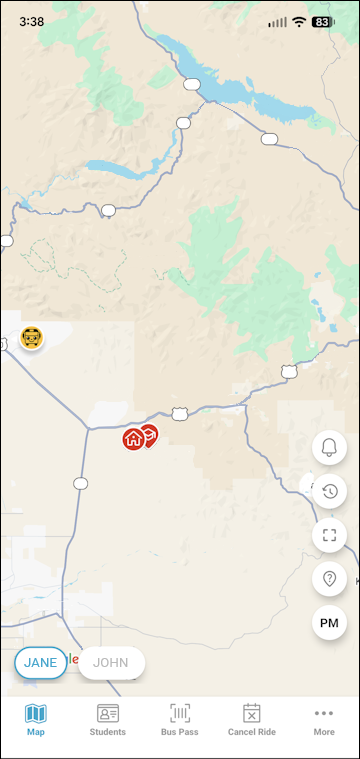
The Here Comes the Bus Map screen will appear.
Logging Out
You can log out as follows:

- On any HCTB screen with the main menu at the bottom, tap More. (Tap Back if needed to return to such a page.)
The More menu will appear, which contains pages that don't fit on the main menu.
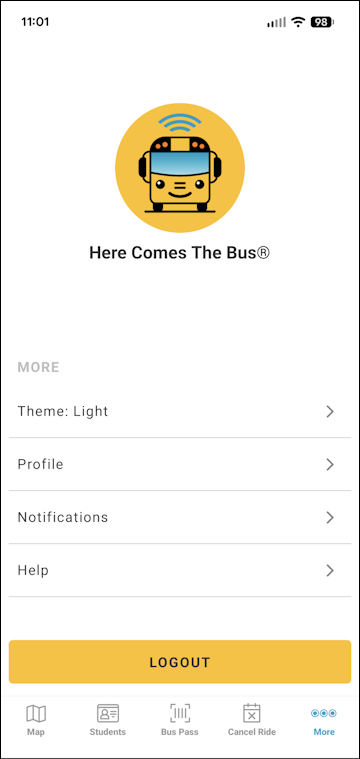
Note: The items on this screen may be different for you, as the main menu options reflect which modules your school district has (and everything that is left is shown here). - Tap Logout at the bottom of the screen.
A confirmation dialog box will appear.
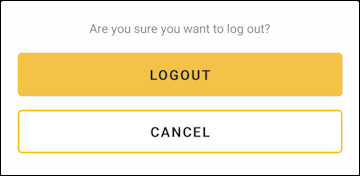
- Tap Logout.
The app will log you out of your account and take you to the login screen.