
To create a Here Comes the Bus (HCTB) account using the new app, follow these steps:
Note: If you have the Here Comes the Bus code your school provided readily available, that will make the account-creation process quicker. This is usually a five-digit code. If you don't have this code, don't worry; the onboarding procedure can help you find it.
Also, have your student's ID number handy, if you know it. If not, there will be instructions later in the steps on how to obtain it from your school.
Caution: A few school districts do not allow parents to create their own HCTB accounts; instead, they will assign you an account. If this is the case for your school, the district will send you the login credentials you need.
- Download and install the new Here Comes the Bus app from the Apple App Store or Google Play.
- Open the new Here Comes the Bus app from your list of apps.

When you first open the new app, you’ll be presented with this screen:
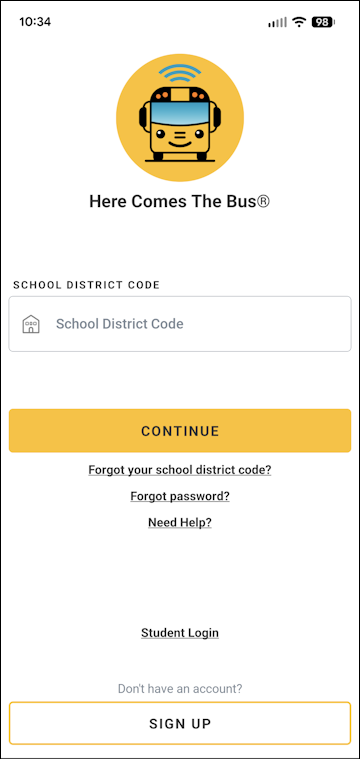
- Tap Sign Up at the bottom of the page.
The following screen will appear, asking for your school district's code.
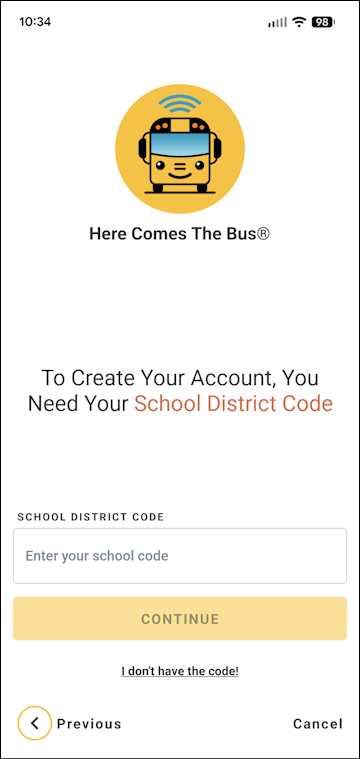
- If you have it, skip down to step 5.
If you don't have it, follow these steps:
- Tap I Don't Have the Code!.
You will be prompted to enter your zip code.
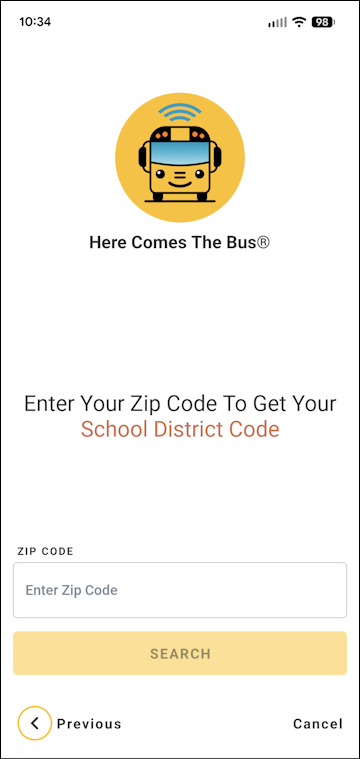
- Tap in the Enter Zip Code field.
- Type your zip code.
- Tap Search.
School districts in your area will appear in a list.
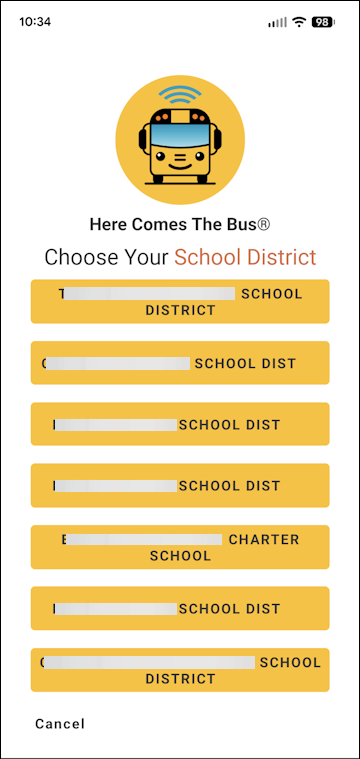
- If your school district is not on the list, tap Cancel. You'll need to contact your student's school and request that they send you the district's code (and then repeat the preceding steps).
If your district IS on the list, tap its name.
A dialog box will appear with the instructions your school district has provided (usually containing the code itself).
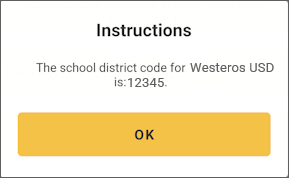
- Tap OK.
- Tap Cancel.
You'll be returned to the Enter Your Zip Code screen.
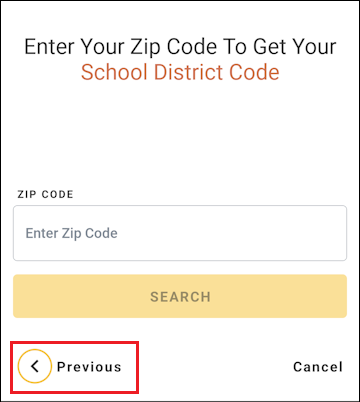
- Tap Previous at the bottom left.
You'll be back at the Enter Your School Code page.
- Tap I Don't Have the Code!.
- Tap in the Enter Your School Code field.
- Type your school district's code.
- Tap Continue.
The Sign Up page will appear.
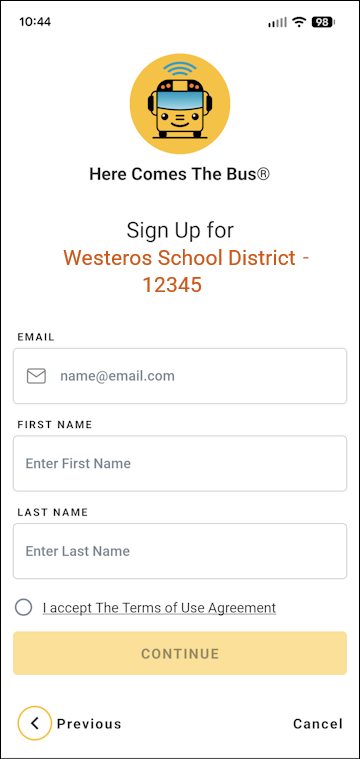
- In the corresponding fields, type your email address, first name, and last name.
Note: To review the user agreement, tap Terms of Use Agreement (and then Dismiss). - If the terms are acceptable to you, tap the I Accept the Terms of Use Agreement radio button.
- Tap Continue.
The Password screen will appear.
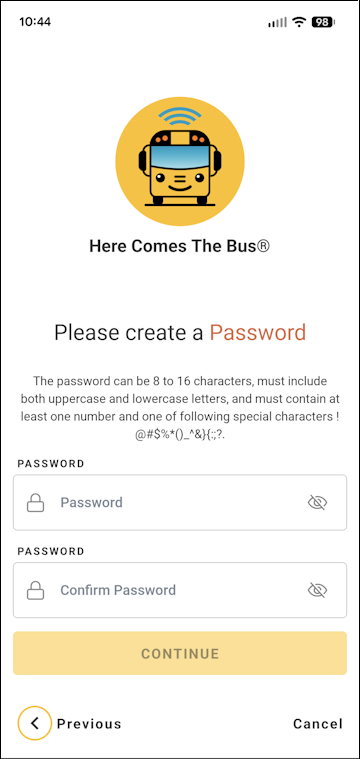
- Type the password you'd like to use for the Here Comes the Bus app in both the Password and Confirm Password fields.
Note: You can tap if you'd like to verify the characters you entered.
Your password needs to be 8 to 16 characters and contain both uppercase and lowercase letters and at least one number and special character. - Tap Continue.
You'll be thanked for registering for Here Comes the Bus.
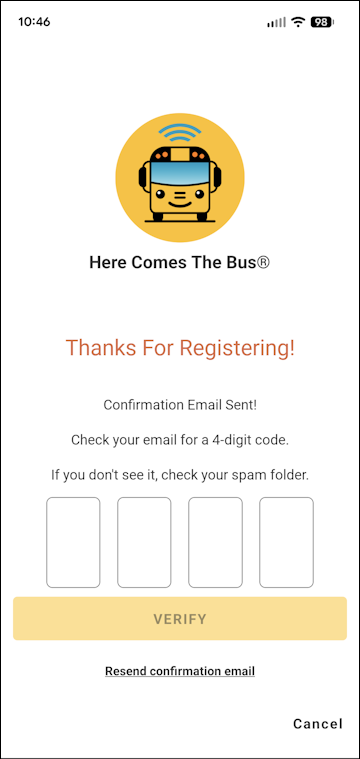
- Open the email sent to you from noreply@synovia.com.
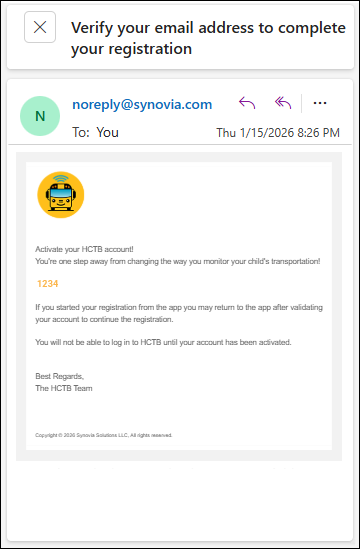
- Take note of the four-digit confirmation code.
- Return to the app and type in the four-digit code on the Thanks for Registering page.
- Tap Verify.
You'll be prompted to add your student’s information.
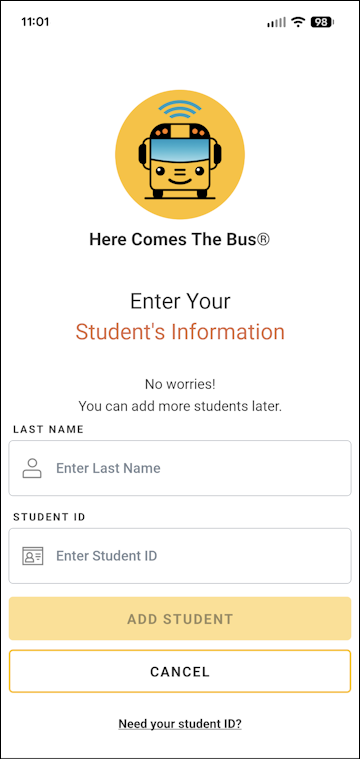
- Type your student’s last name and student ID.
Caution: Make sure to type JUST the last name! A common mistake parents make is to type both the first and last name here, which will result in an error.
Note: If you don't have your student's ID number, follow these steps:
- Tap Need Your Student ID?.
The instructions your school district has provided to find the student ID will be displayed.
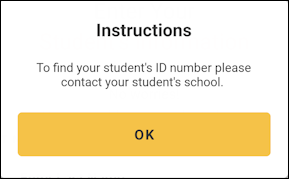
- Follow their steps.
- Return to the app and tap OK.
- Return to step 17.
- Tap Need Your Student ID?.
- Tap Add Student.
You'll be congratulated, and the home bus stop your transportation department has entered for your student will appear.
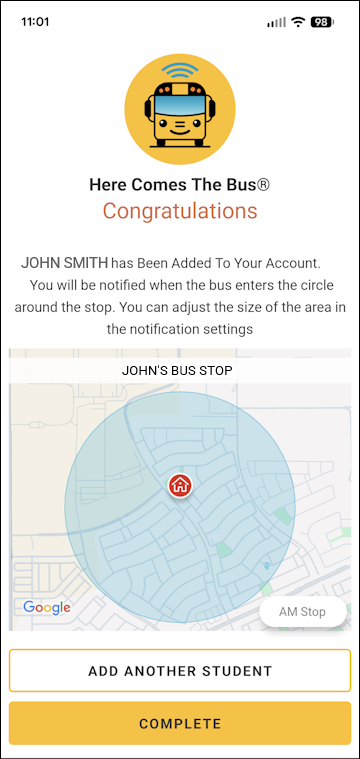
Note: When your student's bus enters the circle shown around your stop, you will receive a HCTB notification. You can adjust the size of the notification circle as shown in Customizing Your Notification Radius in the New App. - You can tap Add Another Student and repeat this process if needed.
- If you are finished adding students, tap Complete.
Note: The first time you launch the new app after creating your account, you'll be prompted to name your device. You can do so as follows:
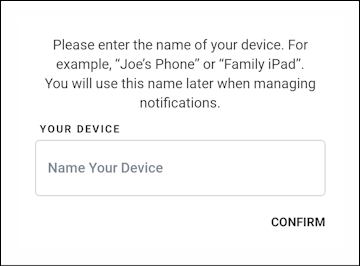
- Tap in the Name Your Device field and type a name that will easily identify it for you.
- Tap Confirm.
If the Welcome Aboard message appears, tap OK in the dialog box to proceed to use the app.