
When you sign up for a Here Comes the Bus (HCTB) account, a circular notification region is automatically created around your student's home bus stop; as the bus crosses its border, you will receive an alert by push notification and/or email so that you know it is close by.
The size and placement of the notification circle are initially set according to the defaults your school district has chosen. The district also has the option to allow parents to adjust the radius according to their preferences. If you are in one such district, you can follow these steps to modify your notification radius:

- On any HCTB screen with the main menu at the bottom, tap More. (Tap Back if needed to return to such a page.)
The More menu will appear, which contains pages that don't fit on the main menu.
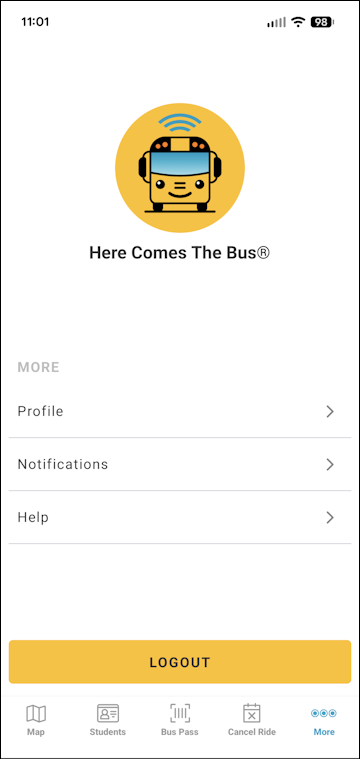
Note: The items on this screen may be different for you, as the main menu options reflect which modules your school district has (and everything that is left is shown here). - Tap Notifications.
The Notifications screen will appear.
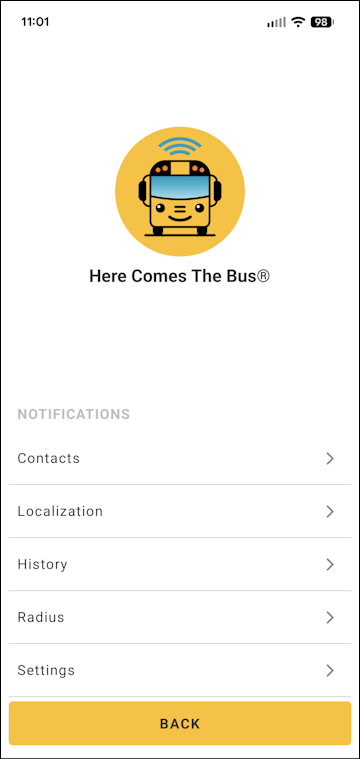
- Tap Radius.
The Edit Radius screen will appear and show the notification radius for your first-listed student's AM stop.
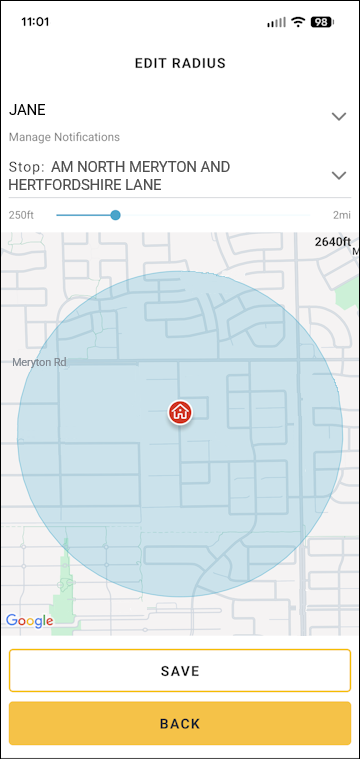
- If you have more than one student associated with your account, and the second student is the one whose radius you need to change, tap your first child's name and select the other one from the list.
Note: Even if your students have the same home bus stop, you'll need to change each notification radius separately, as each stop is a distinct entity in the database. - To make the radius bigger or smaller, tap and drag the slider handle (
 ) right or left, respectively.
Note: How big and small you can make the radius of the notification circle is selected by your school district. In the example in the above figure, the district has opted to allow a 250-foot minimum and 2-mile maximum, but your options may differ.
Caution: If you are enlarging the radius, try to avoid major streets if possible, just in case the bus traverses that path earlier in its route as well. This could give you a false notification the first time the vehicle goes across your notification boundary.
It's best to keep the radius in your neighborhood. - To move the notification area, tap and drag the map.
- When you are finished making changes to the AM radius, tap Save.
A success message will appear.
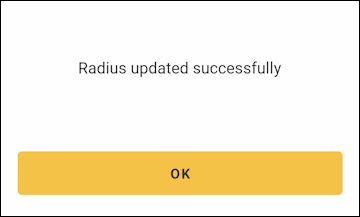
- Tap OK.
- Tap the Stop drop-down arrow and select the PM stop to change its radius.
Note: This is separate, in case you want a different notification radius for the afternoon stop (as often the PM bus route will vary from the AM one, or be reversed). - Repeat steps 5 to 8 for the PM stop.
Note: If you have multiple students in your account, repeat steps 4 to 10 for the other students. - To return to the Notifications screen, you can tap Back at the bottom of the page.