
If you need to remove a push contact (such as an old mobile device you have replaced) or an email recipient from your Here Comes the Bus (HCTB) account, follow these steps:
Note: If you want to just pause notifications for a brief period of time (such as if you are going on vacation), you don't have to delete your push contact or email address. Instead, you can go to the Notifications >> Settings screen, use the Disable All toggle to temporarily turn off push notifications, and on the Email Alerts tab, turn off Opt In to Email Alerts. (See Turning Off and On Specific Push and Email Notifications in the New App for more details.)
If you need to change the email address you use to receive email notifications, you can do so by completing the procedure at Changing Notification Email Addresses or Push Contact Names in the New App.

- On any HCTB screen with the main menu at the bottom, tap More. (Tap Back if needed to return to such a page.)
The More menu will appear, which contains pages that don't fit on the main menu.
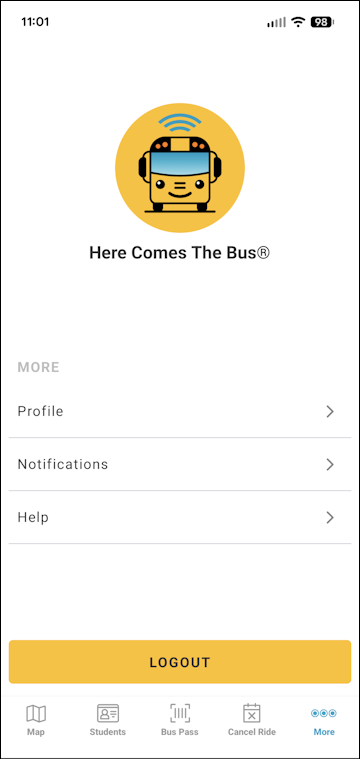
Note: The items on this screen may be different for you, as the main menu options reflect which modules your school district has (and everything that is left is shown here). - Tap Notifications.
The Notifications screen will appear.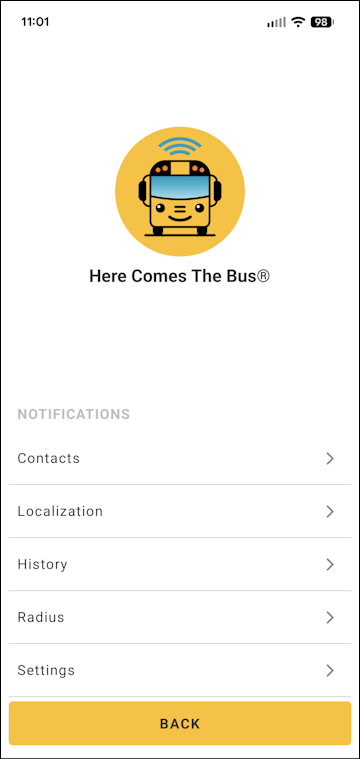
- Tap Contacts.
The Contacts screen will appear.
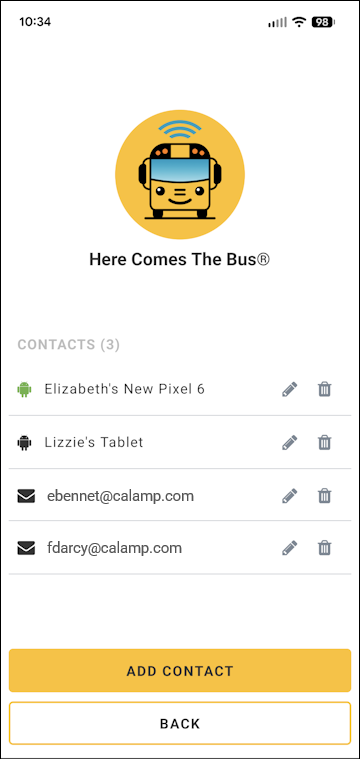
- To delete a push contact or email address, tap
 in its row at the far right.
A confirmation dialog box will appear.
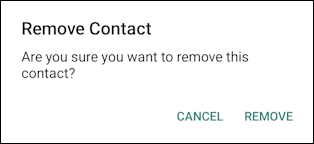
- Tap Remove.
A success dialog box will appear.
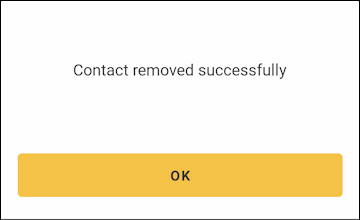
- Tap OK.