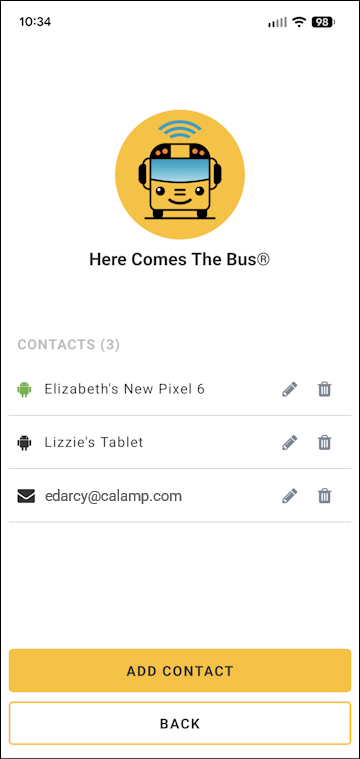
If you want to change the email address where you receive Here Comes the Bus (HCTB) alerts or change the contact name for a push contact (a mobile device where you receive push notifications), you can do so in the new app as follows:
Note: You cannot modify the email you use to log in to your HCTB account in the user inteface options. If you need to use a different email address for your login credentials, you must create a new account using that one. (See Creating an Account with the New App for details.)

- On any HCTB screen with the main menu at the bottom, tap More. (Tap Back if needed to return to such a page.)
The More menu will appear, which contains pages that don't fit on the main menu.
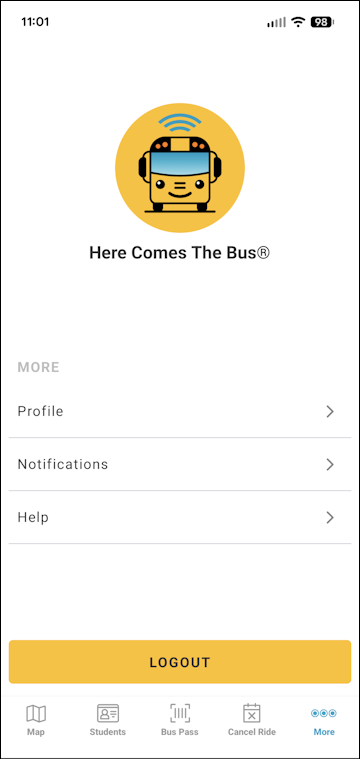
Note: The items on this screen may be different for you, as the main menu options reflect which modules your school district has (and everything that is left is shown here). - Tap Notifications.
The Notifications screen will appear.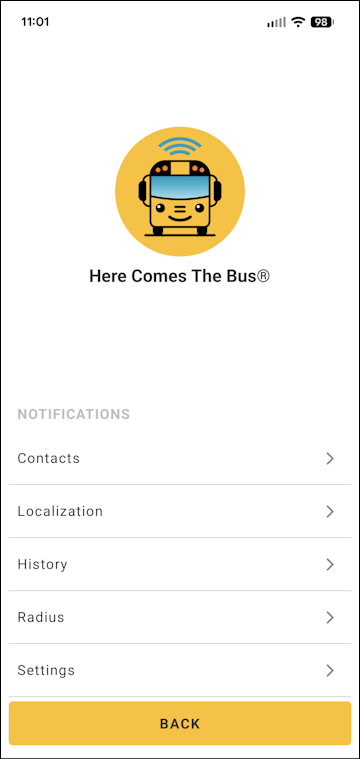
- Tap Contacts.
The Contacts screen will appear.
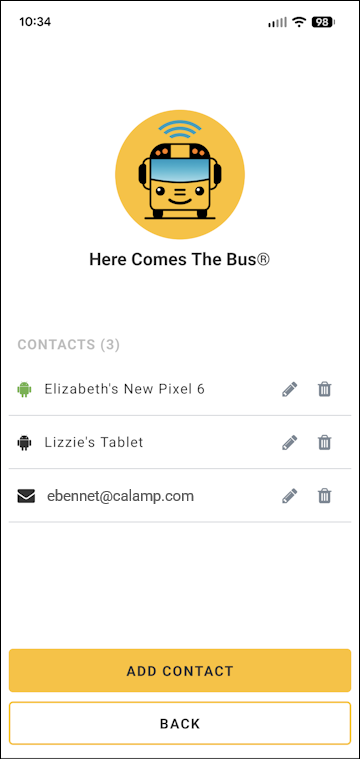
- Tap
 in the row of the email or push contact you want to edit.
The Edit Contact dialog box will appear. It will look like this, depending on whether you selected a push contact or email address to update:
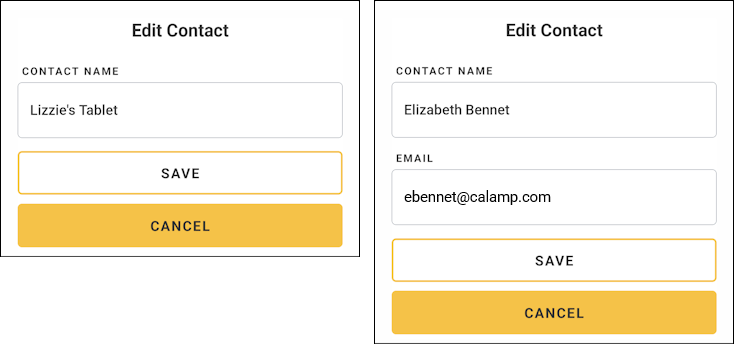
- To change the contact name, select the current text in the Contact Name field and type the new one.
- To update your email for notifications, in the Email field, select the old address and type your new email address over it.
Note: Again, this will not alter the email you use to log in — just the one at which you receive alerts. - Tap Save.
Your new contact name and/or email will be shown on the Contacts page in place of your preceding one.