
If you have previously added a ride cancellation using the new Here Comes the Bus app (see Canceling a Ride in the New App for details), you can review that cancellation, make changes to it, or delete it by following these steps:
- On any HCTB screen with the main menu at the bottom, tap Cancel Ride. (Tap Back if needed to return to such a page.)

Note: If you don't see the Cancel Ride item in the menu, tap More and then select Cancel Ride. (The More menu contains pages that don't fit on the main menu.)
If Cancel Ride doesn't appear on the More menu either, you should check with your school district. They may not have enabled the ride-cancellation feature for your school.
The Cancel-a-Ride screen will appear and show all your active ride cancellations.
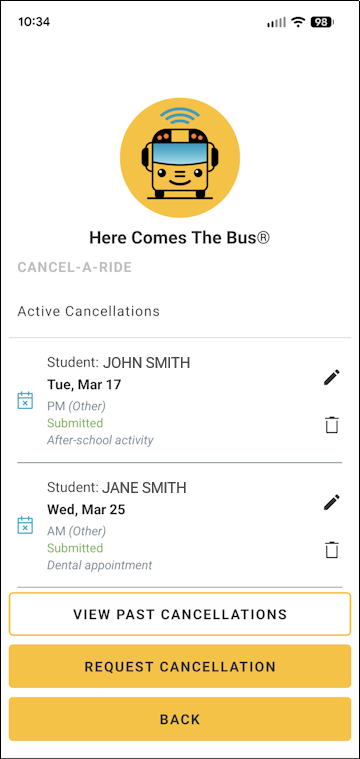
The cancellations will be listed chronologically, with the next one coming up at the top.
- You can tap and scroll down to view all your cancellations.
- To make changes to an upcoming cancellation request, follow these steps:
Note: If you need to remove the request entirely, skip down to step 4 .- Tap
 in its row.
Its current Cancel-a-Ride settings will appear.
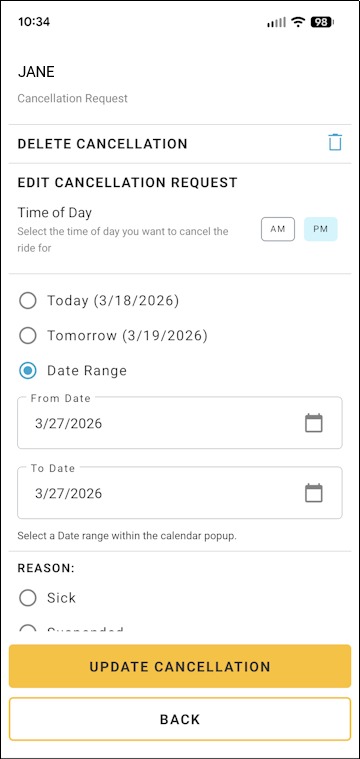
- To change the time of day (the bus ride that you are canceling), tap AM, MID, or PM in the Time of Day area.
Make sure that the bus ride you want to cancel is selected — that is, highlighted in blue. ( means selected, and
  deselected.)
Note: Choose all the time-of-day bus stop options if your student won't be riding the bus at all on the day in question. - You can update the date for the ride cancellation by choosing one of these options:
- Today: Tap this if the ride cancellation is for the current day.
Note: The Today option will be available only if your school district has opted to allow same-day requests. - Tomorrow: Select this if the ride cancellation is for tomorrow.
- Date Range: Choose this if you need to enter a different day (or a range of days, such as if your student will be out of town for a short period). Then follow these steps:
- Select the From Date calendar picker.
A calendar will appear.
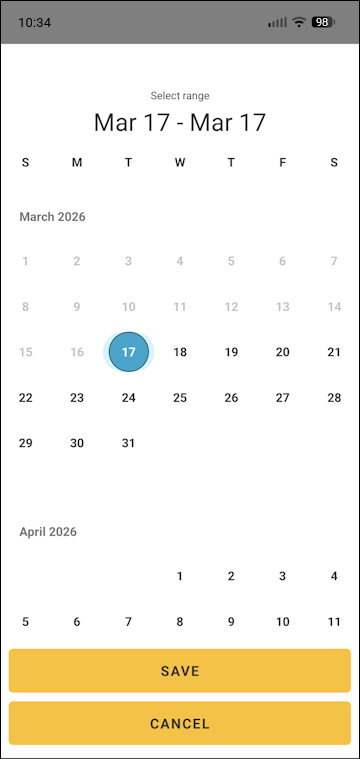
- Select the first day of the cancellation.
Note: If needed, you can tap and drag up to see later months. - Then tap the last day of the cancellation.
Note: If the cancellation is for a single ride, select the same day that you chose for the From Date value. - Tap Save.
- Select the From Date calendar picker.
- Today: Tap this if the ride cancellation is for the current day.
- To edit the reason for the ride cancellation, tap a different radio button in the Reason section.
If you tap Other, in the Add Notes box, type why your student won't be riding the bus.
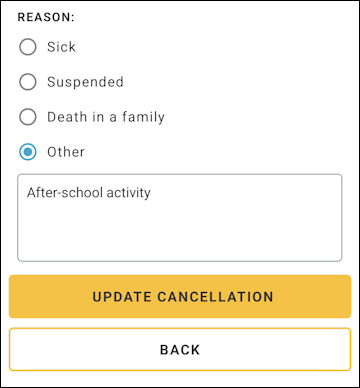
- Tap Update Cancellation.
A success message will appear.
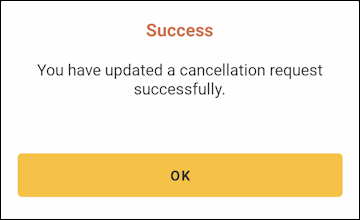
- Tap OK.
You'll be returned to the Cancel-a-Ride screen, and your cancellation modifications will appear in the Active Cancellations list.
- Tap
- You can delete an upcoming ride cancellation as follows:
Note: You should delete a request if your plans have changed and your student does, in fact, need to ride the bus at a time you previously thought they wouldn't (such as if you'd canceled a bus ride for a dental appointment that your dentist postponed).- In the Active Cancellations list, tap
 in its row.
A confirmation dialog box will appear.
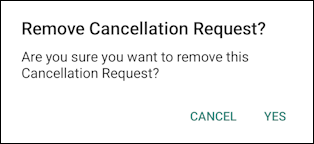
- Tap Yes.
A success message will appear.
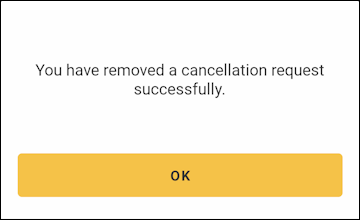
- Tap OK.
You'll be returned to the Cancel-a-Ride screen, and your ride cancellation will no longer be in the Active Cancellations list.
- In the Active Cancellations list, tap
- You can see your past ride cancellations as follows:
- At the bottom of the Cancel-a-Ride screen, tap View Past Cancellations.
The Past Cancellations page will appear and list all your old ride requests.
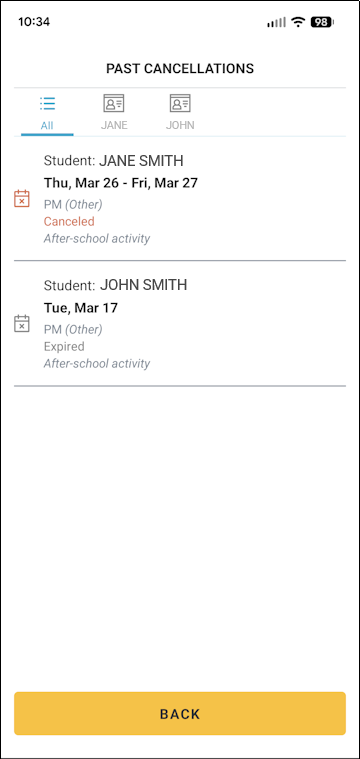
- If you have more than one student and want to see the previous cancellations for just one of them, tap their name at the top of the screen.
If and "Canceled" appear in red in the row of a past request, this means that you deleted it before it occurred.
Most requests will have "Expired" in their row, indicating this occurred at a past date.
- You can tap Back to return to the Cancel-a-Ride screen.
- At the bottom of the Cancel-a-Ride screen, tap View Past Cancellations.