
The Here Comes the Bus (HCTB) Activities feature enables you to track special bus trips set up by your school, such as field trips, competitions, and food drops. To add such an activity using the new app, follow these steps:
- On any HCTB screen with the main menu at the bottom, tap Activities. (Tap Back if needed to return to such a page.)

Note: If you don't see the Activities item in the menu, tap More and then select Activities. (The More menu contains pages that don't fit on the main menu.)
If Activities doesn't appear on the More menu either, you should check with your school district. They may not have enabled the HCTB Activities feature for your school.
The Your Activities screen will appear and list all the activities you've already added (if any).
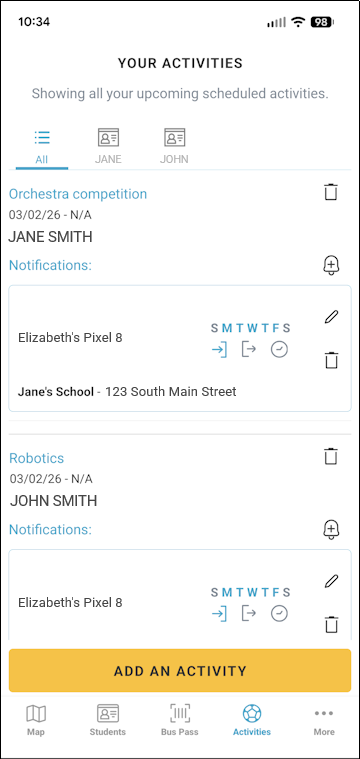
- If you have more than one student associated with your account, tap the name of the student for whom you want to add a HCTB activity at the top of the screen.
- Tap Add an Activity.
The Activity Search screen will appear.
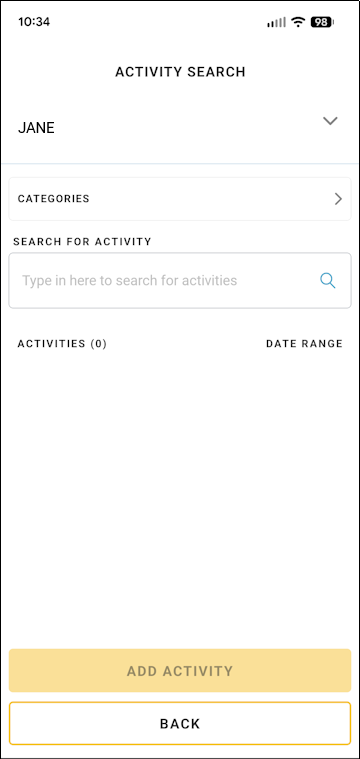
- Type part of the activity name provided by your school in the Search for Activity box.
- Tap
 .
.
Matching activities will be displayed in a list.
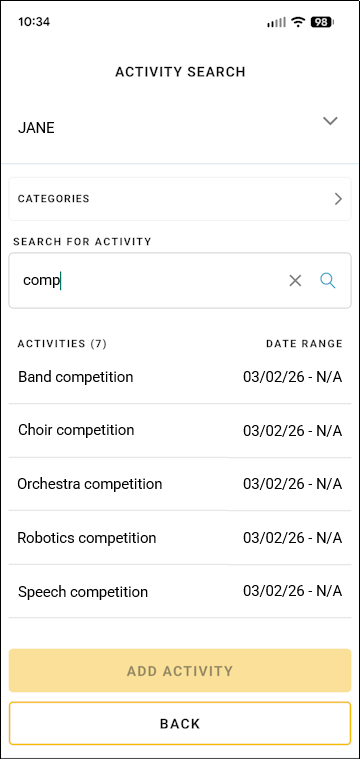
- Tap the activity you want to add.
- Tap Add Activity.
A success message will appear, plus a prompt to set up notifications for the activity.
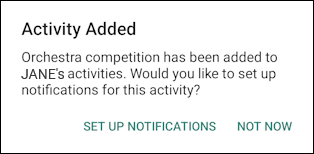
- Tap Set Up Notifications.
The Activity Notifications screen for the activity will appear.
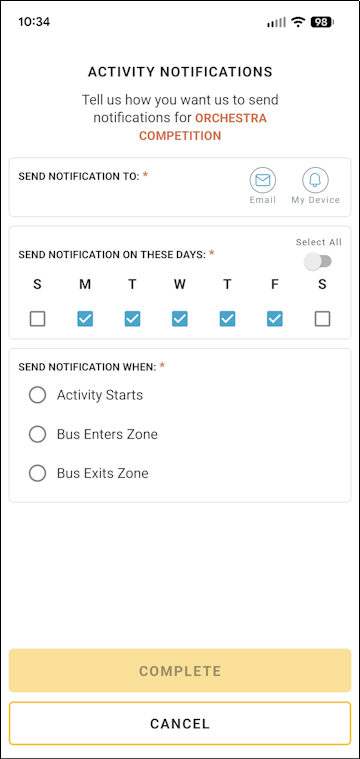
- Select how you want to receive the notification — by Email and/or My Device (that is, your mobile device).
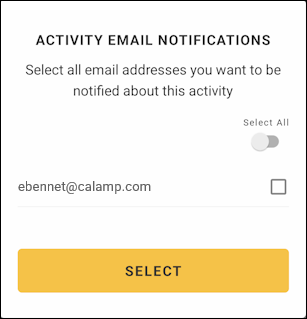
If you select Email, the Activity Email Notifications box will be displayed. In this, select the check boxes to the right of the email addresses and then tap Select.
By default, the activity is set to be monitored (and the notification sent out) only Monday through Friday.
- If the activity will occur on the weekend, tap Saturday and/or Sunday to select it as well. Or tap any selected day of the week you don't want to monitor (to deselect it).
- Tap to select when you want to receive the alert: when the activity begins, when the bus enters the activity zone, or when the bus exits the zone. (The activity zone is a circular area surrounding where the bus will be dropping off/picking up your child for the activity, such as the school parking lot. For Bus Enters Zone, you're notified when the school bus enters the circle.)
If you select Bus Enters Zone or Bus Exits Zone, you'll need to choose or create an activity zone, as follows:
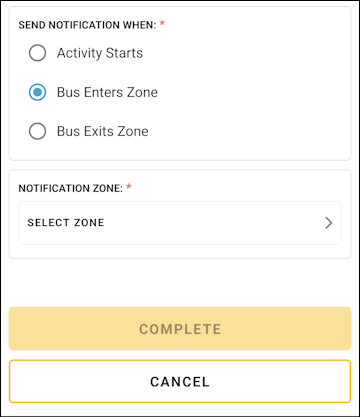
- In the Notification Zone area that appears, tap Select Zone.
The Notification Zones screen will appear.
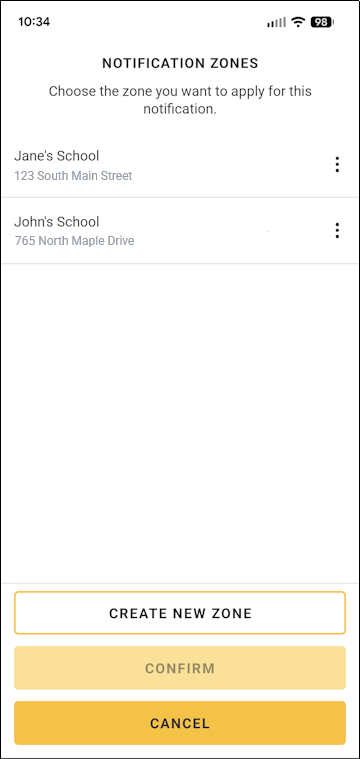
- If you have previously added the zone for the activity, select it, tap Confirm, and skip down to step 12.
- If you need to add the zone, tap Create New Zone.
The Notification Zone screen will appear.
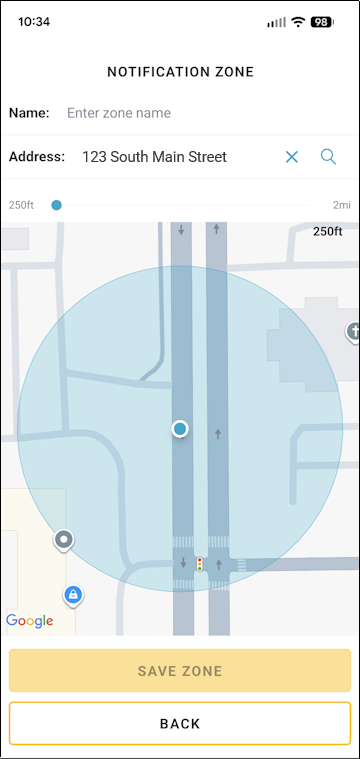
- Tap in the Name field and type a name for the zone that will easily identify it for you, such as Jane's School.
If the school has preselected an address for their activity zones, it will be displayed in the Address field, and a circular shape will surround that location on the map. (This is the actual zone.)
- If you need to enter a different address, tap
 to the right of the current one, type the new address, and tap .
The circle on the map will move to your new address.
- On the slider bar below the Address field, you can tap and drag the
 to the right to make your notification circle larger (or to the left to make it smaller).
- Tap Save Zone.
A success message will appear.
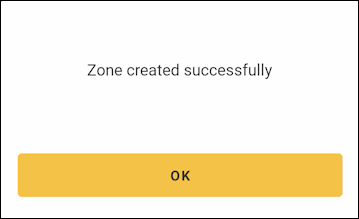
- Tap OK.
You'll be returned to the Activity Notifications screen.
- In the Notification Zone area that appears, tap Select Zone.
- Tap Complete.
A success message will appear.
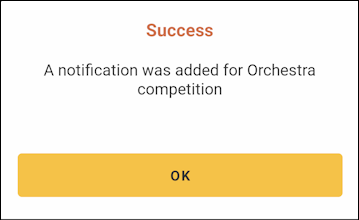
- Tap OK.
You'll be returned to the Your Activities page, and your newly added activity will be included in the list.
You will now be alerted when the activity occurs according to your settings. You can also track the activity on the map. (See Tracking Your Student's Bus with the New App for details.)
Note: You can edit your notification settings by tapping on the Your Activities page, making your needed modifications, and selecting Save Changes. You can delete the notification by tapping
  and then Delete in the warning dialog box.