On the Here Comes the Bus (HCTB) Map screen, you can watch your student's bus live on a map of your area so that you can see how far away it is from the bus stop. To track your student's bus on the map, follow these steps:
- Log in to HCTB. (See Logging In to the New HCTB App for details, if needed.)
Note: If you already have the app open and are on another page, tap Map at the bottom of the screen to open the map.
The Here Comes the Bus Map screen will appear.
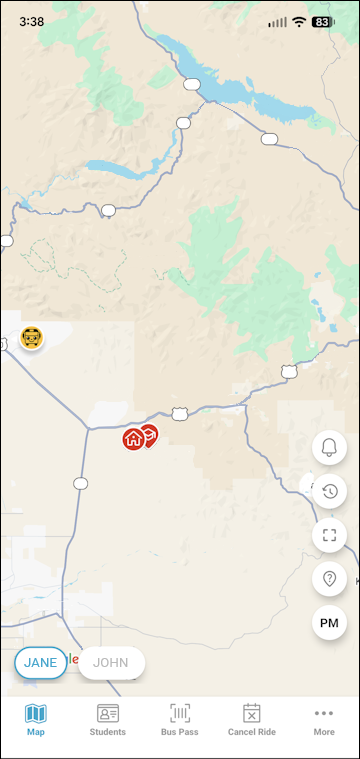
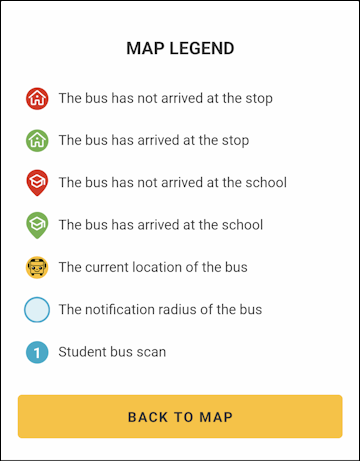
Your student's school stop will be represented by a or
or  icon, your home bus stop by
  or
or  , and the bus by
  .
.
Note: If the icon is green, the stop has been made. If it is red, the bus hasn't arrived yet.
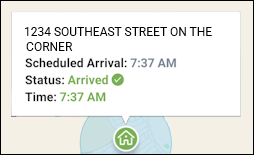
You can tap one of the icons to see information such as its address or school name, scheduled time of arrival, and status.
The current route displayed at the bottom right of the map defaults to the run closest to the time of day, such as AM in the morning or PM in the afternoon. You can tap AM/MID/PM to select a different route to display.
- You can watch the bus () as it moves on the map to see how close it is to arriving at your stop. The arrow points the direction the bus is moving.
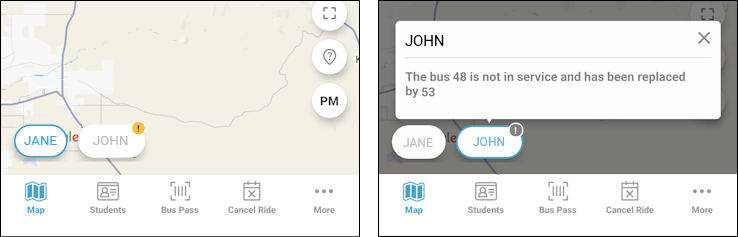
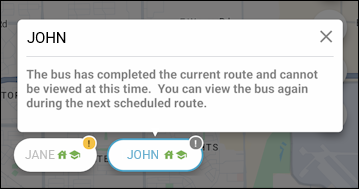
Note: Some school districts have restricted when you can see your bus to only when it is within your home bus stop radius. Others will allow you to see the bus only when your student's run has started in the morning or will stop showing it after the bus has dropped off your child in the afternoon. If there is some kind of limitation in place on bus visibility, your school often will provide an alert to that effect such as this:
You can tap and drag the map to view different areas.
These are the options at the right of the screen:
 : Opens a list of notifications you've received over the last 14 days.
 : Launches stop data for the selected time of day (such as the PM stop), showing when the bus was scheduled to arrive and when it actually came.
 : Zooms in on your default map location (the center of the bus's location and the selected student's stops).
 : Displays a map legend that explains what the map icons represent.
 : Enables you to select a different route to display (as mentioned earlier).
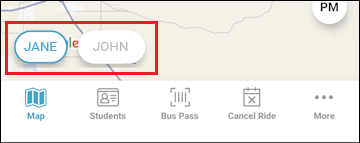
- If you have more than one student registered to your HCTB account, you will see an oval along the bottom of the Map screen for each of your students. You tap the oval of the student whose stops you want to see.
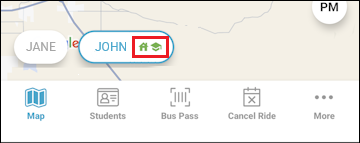
- Check your student's oval for green icons. These indicate that the bus stop and/or school stop has been made.
- If an exclamation point appears on your student's oval, this means that you have an alert from your school for the bus route, such as if there is a substitute bus. Tap the oval to see the message.