
When you signed up for Here Comes the Bus (HCTB), you needed to provide an email address for your login credentials. That is the default address used when the app sends email notifications (if you have opted to receive them) for the arrival of the bus at your student's home bus stop, for bus substitutions, and for calendar exceptions. If you'd like these notices to go to another email address as well (such as your spouse's or student's), follow these steps:
Note: If you need details on how to turn off or on certain email notices (such as for when the bus enters your notification area for the PM stop), see Turning Off and On Specific Push and Email Notifications in the New App.

- On any HCTB screen with the main menu at the bottom, tap More. (Tap Back if needed to return to such a page.)
The More menu will appear, which contains pages that don't fit on the main menu.
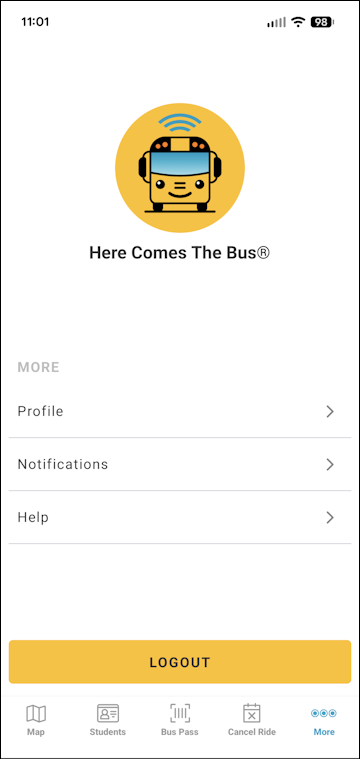
Note: The items on this screen may be different for you, as the main menu options reflect which modules your school district has (and everything that is left is shown here). - Tap Notifications.
The Notifications screen will appear.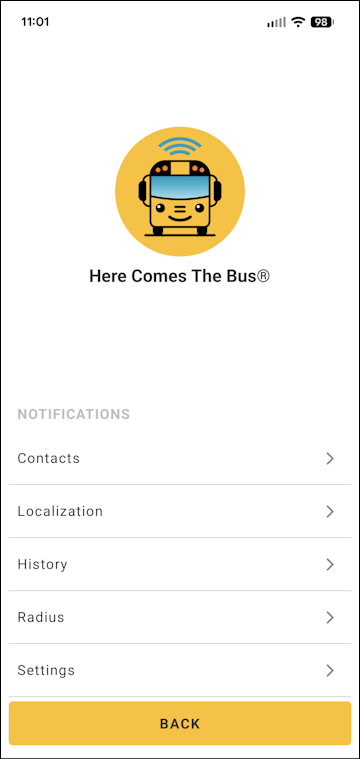
- Tap Contacts.
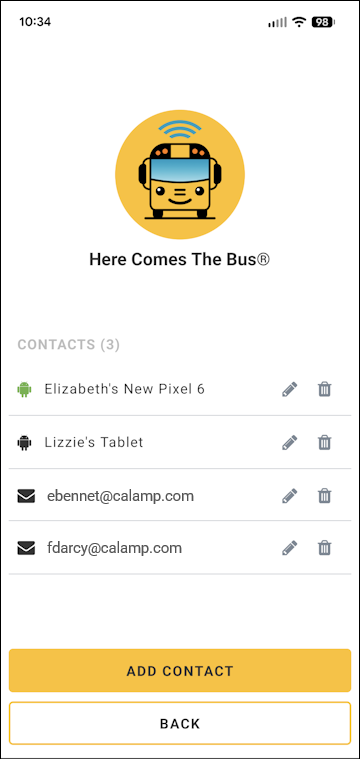
The Contacts screen will appear.
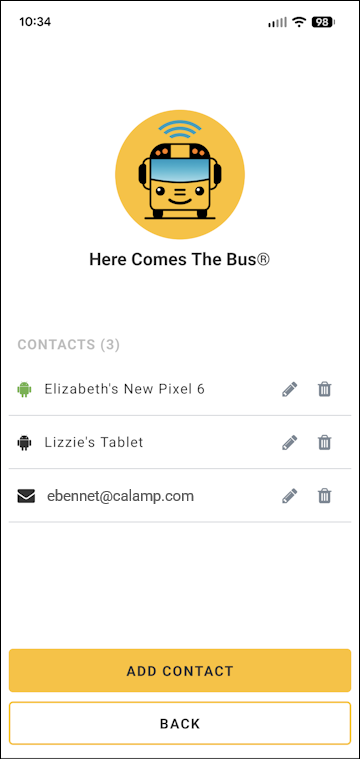
- Tap Add Contact.
The Add Contact dialog box will appear.
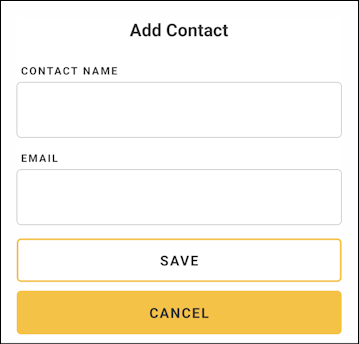
- In the Contact Name field, type the name of the new email recipient.
- In the Email field, type their email address.
- Tap Save.
The new contact will be added to the Contacts screen.
Going forward, the new recipient will receive the same email messages you do from HCTB.