If you would like to receive push notifications on another mobile device (in addition to the one you used to set up your Here Comes the Bus [HCTB] account), follow these steps:
Note: You can't add the new push contact using your original cell phone or the HCTB website. Instead, you need to use the mobile device you want to add to your account.
- Using the smart device you want to add, download and install the new Here Comes the Bus app (from Google Play or the Apple App Store).
When you open the app, the login screen will appear.
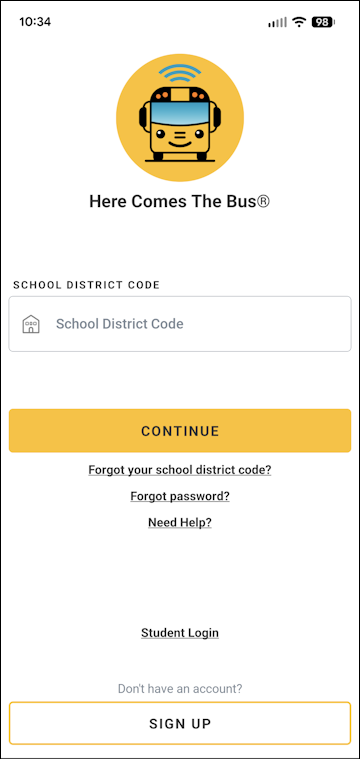
- Tap in the School District Code field and type your district's code, which is usually a five-digit number.
- Tap Continue.
The second login screen will appear.
- Tap in the Email field and type the email address for your account.
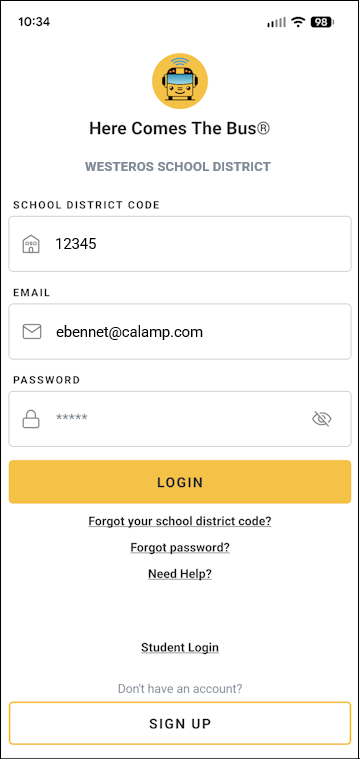
- Tap in the Password field and type your password.
Note: You can select if you'd like to verify the characters you entered.
If you've forgotten your password and need to reset it, tap Forgot Password? and follow the onscreen instructions. (See Resetting a Forgotten Password from the Login Screen Using the New App for more details.) - Tap Login.
HCTB will recognize that you are accessing it from a different mobile device and will prompt you to name it.
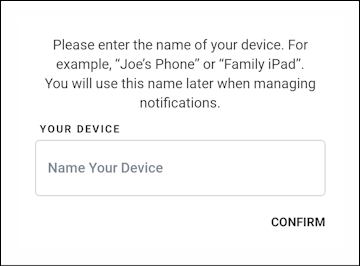
- Tap in the Name Your Device field and type a name that will differentiate the new push contact from your original one, such as "Lizzie's Tablet."
- Tap Confirm.
The new smart device will now receive HCTB push notifications for your account.
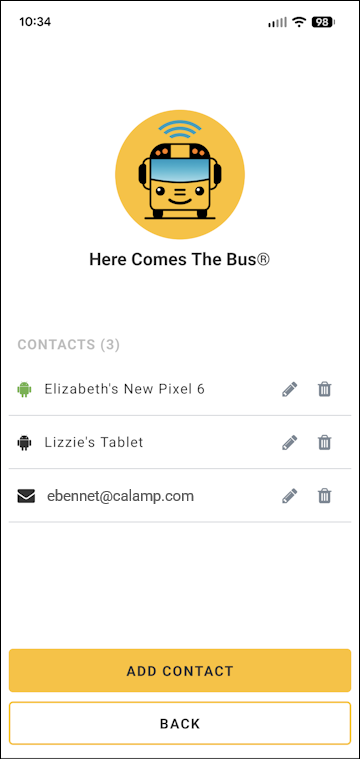
- You can see the new push contact listed on the Contacts screen of Notifications.