
If you would like to review the notifications you've received over the course of the past two weeks using the new Here Comes the Bus (HCTB) app, including the message text, when the alert was delivered, and through what medium, follow these steps:
- Log in to HCTB. (See Logging In to the New HCTB App for details, if needed.)
The Here Comes the Bus Map screen will appear.
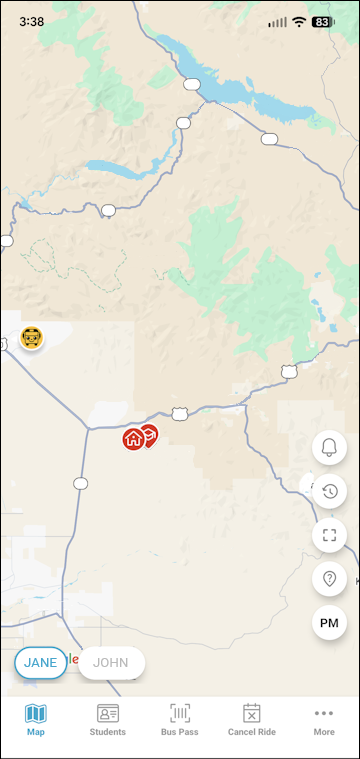
- To navigate to your notification history from the map, follow these steps:
- Tap the oval of the student whose notifications you want to see at the bottom of the map.
- Tap
 on the right.
A list of the past 14 days' worth of notifications will be displayed, with the most recent one on top.
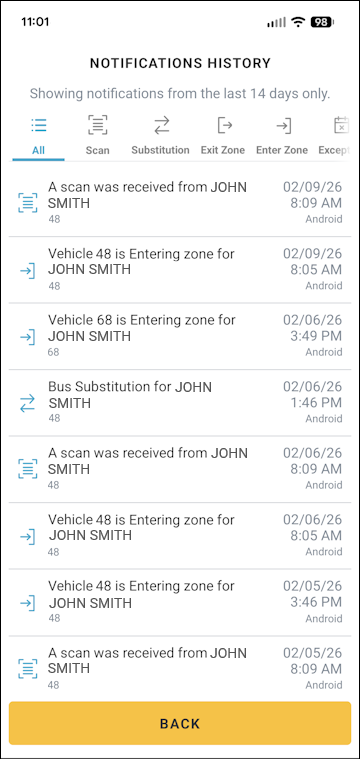
Note: Alternatively, you can navigate to your notification history as follows: Tap More on the main menu at the bottom right of the screen, select Notifications on the More menu, and then tap History. This will display all your students' alerts. If you have multiple students and want to view just one's notices, tap the Student: All drop-down arrow and select their name from the list.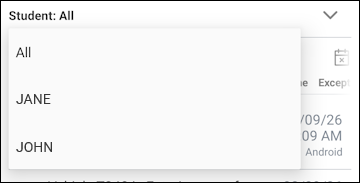
- Tap the oval of the student whose notifications you want to see at the bottom of the map.
- Here is the information that will be shown in each row:
- A shortened version of the message text you were sent via email or push notification.
- The name/number of the bus.
- The method of message delivery — email or push notification (which will be specified by the device type, Android or iOS).
- The date and time you received the alert.
- A shortened version of the message text you were sent via email or push notification.
- The icons on the left indicate the following types of notifications:
 Stop Radius Entry: Your student's bus entered the notification area around your home bus stop (the radius defining how wide the circle is around the stop).
 Stop Radius Exit: Your student's bus left the notification area around your home bus stop.
 Bus Substitution: The school district substituted another vehicle for your student's bus.
 Student Scan: Your student scanned on or off the bus (if your school district has opted for the Student Ridership module; see What Is Student Ridership?).
 Calendar Exception: The bus operating schedule was changed (such as a delay of two hours in the morning or a bus route cancellation for the whole day). See What Are the Calendar Exception Notifications? for details.
- You can tap the screen and drag up to scroll down in the list of notifications.
- To see just one category of alert, select its type at the top of the screen. (For example, if you want to see when your student scanned on and off the bus, tap Scan in the top toolbar.)
- To return to the Map or Notifications screen, you can tap Back at the bottom of the page.