
To add a student to your Here Comes the Bus (HCTB) account using the new app, follow these steps:
- Log in to the new HCTB app. (See Logging In to the New HCTB App for details, if needed.)
The Here Comes the Bus Map screen will appear.
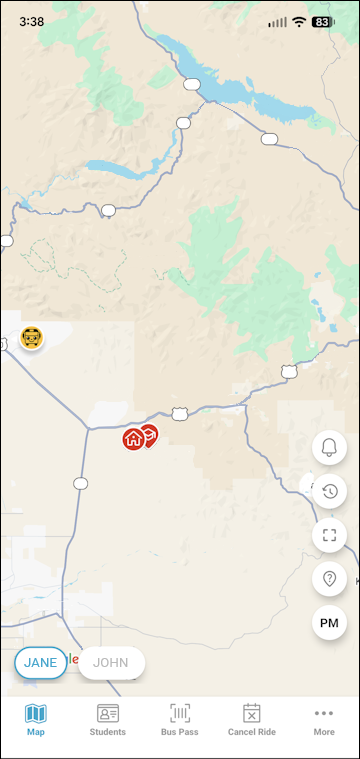
- Tap Students at the bottom of the screen.
The Students screen will appear and display the names of the students currently in your account.
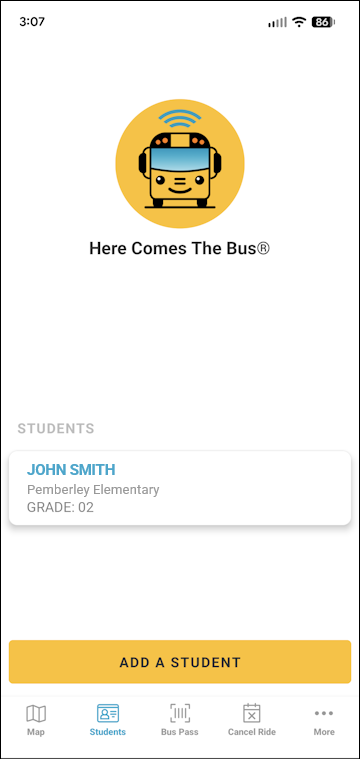
- Tap Add a Student.
The Enter Your Student’s Information screen will appear.
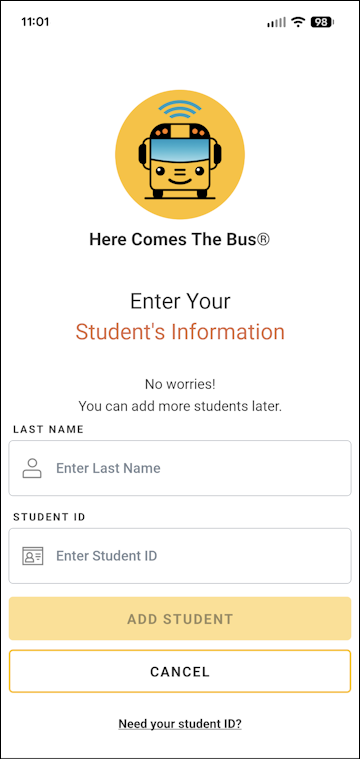
- Type your student’s last name and student ID.
Caution: Make sure to type JUST the last name! A common mistake parents make is to type both the first and last name here, which will result in an error.
Note: If you don't have your student's ID number, follow these steps:
- Tap Need Your Student ID?.
The instructions your school district has provided to find the student ID will be displayed.
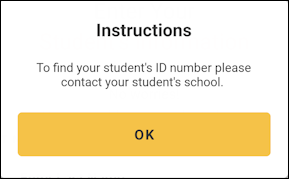
- Follow their steps.
- Return to the app and tap OK.
- Return to step 4.
- Tap Need Your Student ID?.
- Tap Add Student.
You'll be congratulated, and the home bus stop your transportation department has entered for your student will appear.
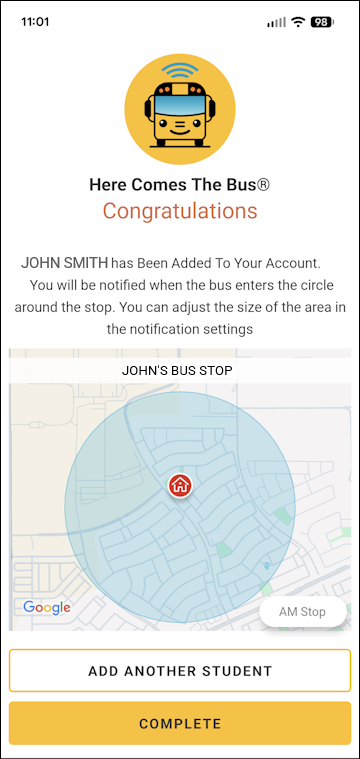
Note: When your student's bus enters the circle shown around your stop, you will receive a HCTB notification. You can adjust the size of the notification circle as shown in Customizing Your Notification Radius in the New App. - You can tap Add Another Student and repeat this process if needed.
- If you are finished adding students, tap Complete.