
If you've just happened upon this Help article and would like to see how to quickly find the Here Comes the Bus (HCTB) Knowledge Base (KB) again using the new app, plus how to find help with the topic you need, you can follow these steps:
- Log in to HCTB. (See Logging In to and Out of the New HCTB App for details, if needed.)
Note: If you already have the app open and are on another page, skip down to step 2.
The Here Comes the Bus Map screen will appear.
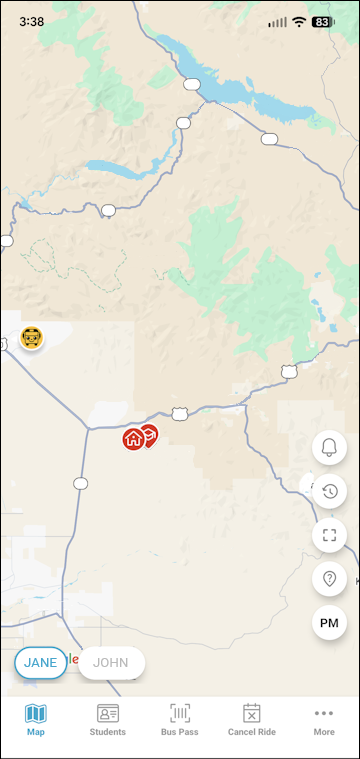
- Tap More on the main menu at the bottom right of the screen.
The More menu will appear, which contains pages that don't fit on the main menu.
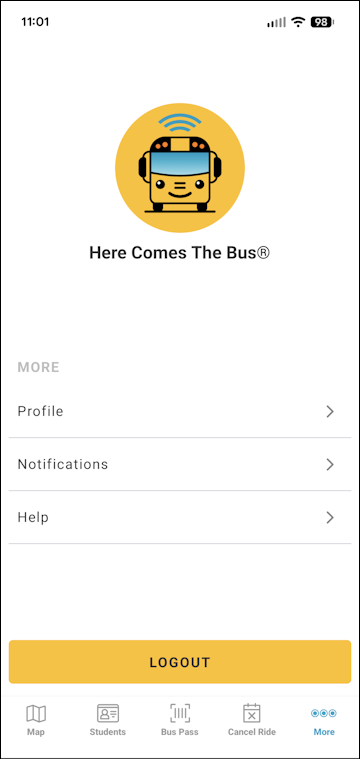
Note: The items on this screen may be different for you, as the main menu options reflect which modules your school district has (and everything that is left is shown here). - Tap Help.
The Help screen will appear.
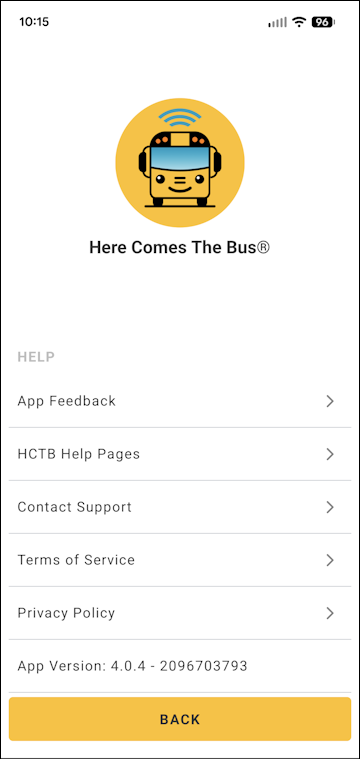
- Tap HCTB Help Pages.
The HCTB Knowledge Base, chock-full of useful articles such as this one, will appear.
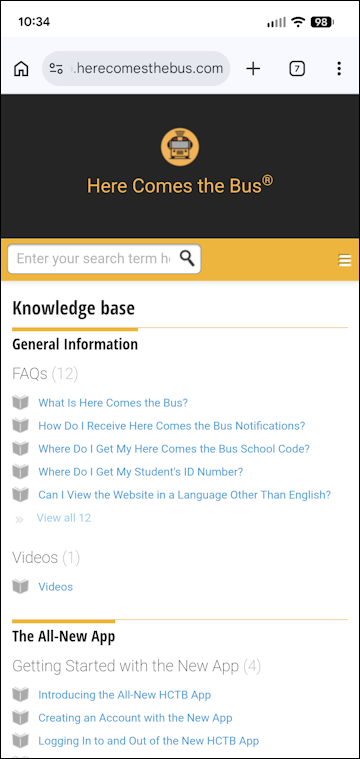
- To find help with the new app, tap The All-New App.
All the articles about the new app will be listed.
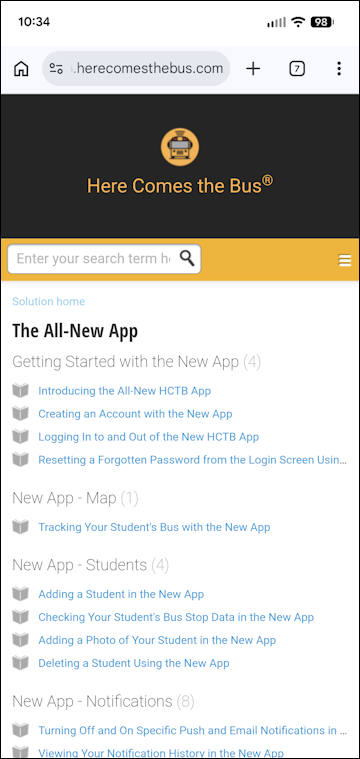
- Scroll through these to find the topic you need.
The articles are organized into these folders:
- Getting Started with the New App: Covers creating a new account, logging in and out, and resetting your password if you've forgotten it.
- New App - Map: Shows how to track your student's bus on the map.
- New App - Students: Explains how to add a student, upload your student's photo, and delete a student.
- New App - Notifications: Describes configuring your push and email notifications, viewing notification history, and adding new contacts.
- New App - Profile: Shows how to change Profile settings, change your password, change the language you use for notifications, and update your unit of measurement.
- New App - Activities: Covers adding and editing HCTB activities (such as field trips).
- New App - Cancel-a-Ride: Explains how to submit a ride cancellation so that the bus driver knows when your student won't be riding the bus.
- New App - Bus Pass: Shows how your student can use a smartphone to scan on and off the bus.
- New App - Help : Covers the KB articles and viewing legal documents such as the terms of service.
- Getting Started with the New App: Covers creating a new account, logging in and out, and resetting your password if you've forgotten it.
- In addition, you can type the topic you are looking for in the Search field at the top of the KB to find articles, keeping the search term to as few words as possible (one keyword, preferably, such as "track").
Matching articles will appear as you type.
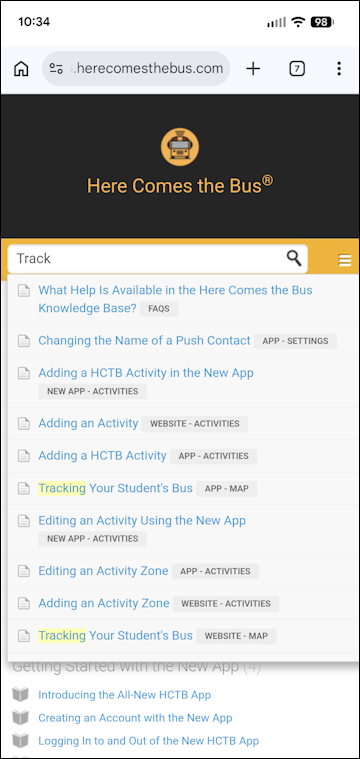
- If the topic you need appears, tap it to read the article.
Note: The article folders named beginning with "New App -" and "Website -" are specific to using HCTB in the new app and on the website, respectively. Keep that in mind when you select the article you need. - If you need more search results, tap
 in the Search bar.
Associated articles will appear in a list.
- Scroll down to see all the results and select the article you need.
Note: To see how the KB articles as a whole are organized, go to What Help Is Available in the Here Comes the Bus Knowledge Base?.