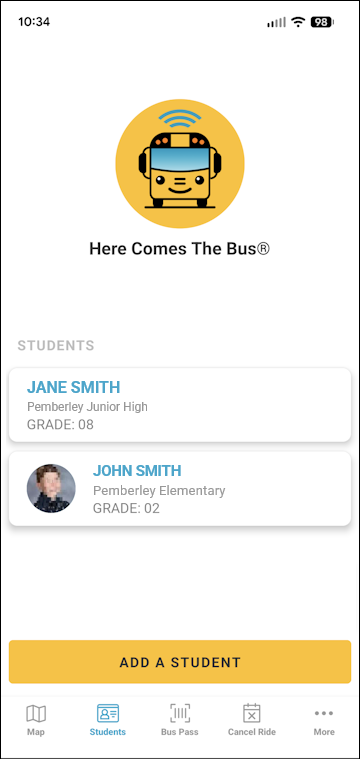
In the new Here Comes the Bus (HCTB) app, you can add a photo of your student from your device on the Students page, as follows:

- On any HCTB screen with the main menu at the bottom, tap Students. (Tap Back if needed to return to such a page.)
The Students screen will appear and list all the students in your HCTB account.
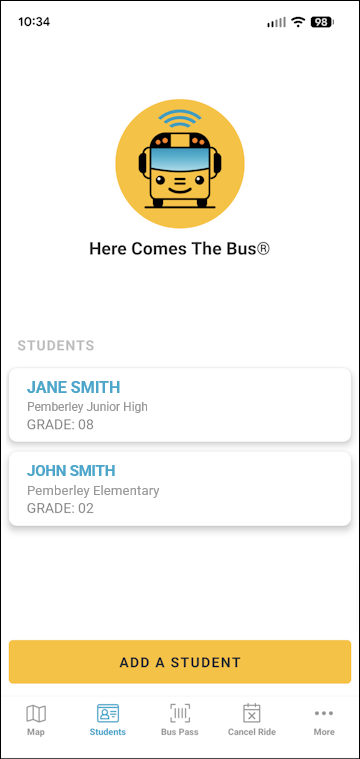
- Tap the name of the student whose picture you want to add.
Their student data will be displayed.
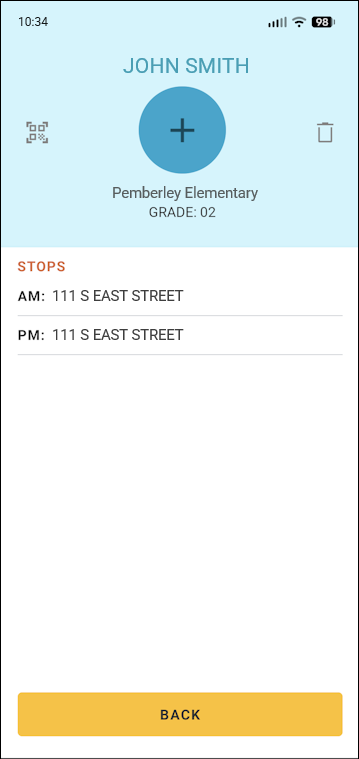
- Tap
 at the top of the screen.
Your gallery of photos will be displayed on your device.
Note: You might need to grant HCTB access to your images. - Select the photo you want to use for your student and then tap Done (or whatever the equivalent is for your smart device).
The photo will be displayed, and you will be given the option to crop it (depending on your device's capabilities).
- Crop it as needed and then tap Crop.
You'll be returned to the student data screen, and your child's photo will be at the top.
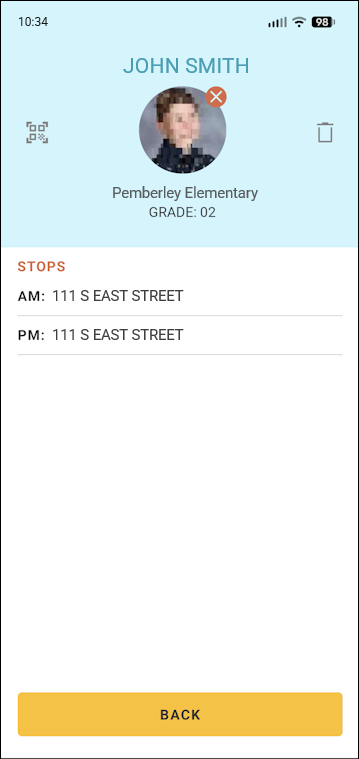
- Tap Back at the bottom to return to the Students screen.
You'll see that the photo is also displayed in their row on this page.