
Bus Pass displays your student's ID bar code/QR code in the Here Comes the Bus (HCTB) app, enabling your student to use a smartphone to scan on and off the bus (if your school district has the Student Ridership module, the appropriate data in their software setup, and someone who will scan the bar codes/QR codes on the buses).
To use Bus Pass in the new app, follow these steps:
Note: You can use Bus Pass even if you haven't signed up for a HCTB account; the second section below ("From the Login Screen") shows how to do so. You can actually follow those steps with or without an account. The first section describes how to use Bus Pass from any Here Comes the Bus screen.
After You're Logged In

- On any HCTB screen with the main menu at the bottom, tap Bus Pass. (Tap Back if needed to return to such a page.)
The Bus Pass screen will appear and list all the students in your HCTB account.
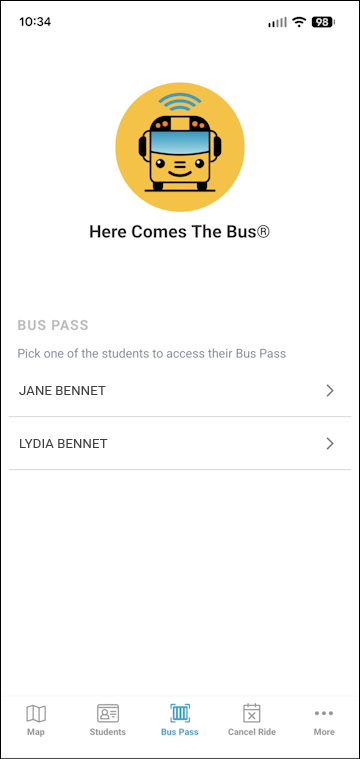
- Tap your name.
The QR code for your student ID will appear. (If you previously chose the Barcode button, the bar code will be shown.)
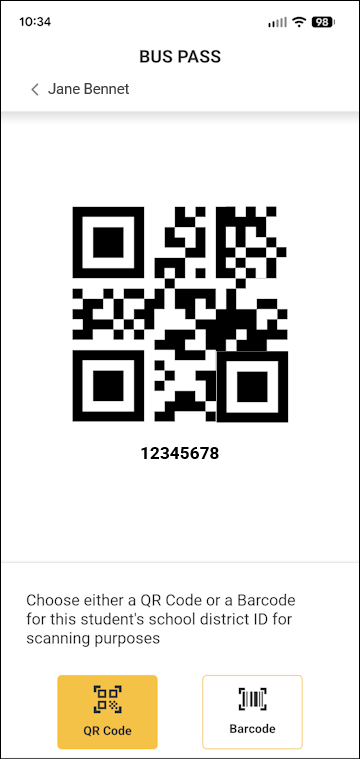
- If you need to use a bar code instead, tap the Barcode button at the bottom right.
The bar code for your ID will be displayed.
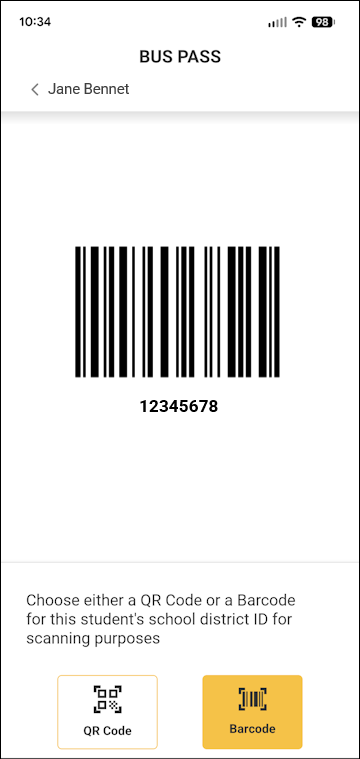
- Place the QR/bar code under the code reader on the bus, holding it there long enough for the reader to scan it (which is usually registered with a beep).
- You can tap
 at the top left to return to the Bus Pass screen.
From the Login Screen
Note: You can use Bus Pass with or without a HCTB account using the following steps.
You must, however, know your student ID number and your HCTB school district code! (If needed, you can tap Forgot Your School District Code? and follow the instructions provided by your school to find your code.)
- On the login screen, tap Student Login.
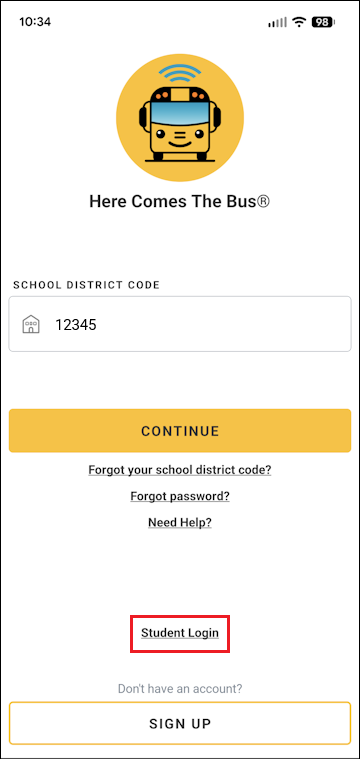
The student ID information screen will appear.
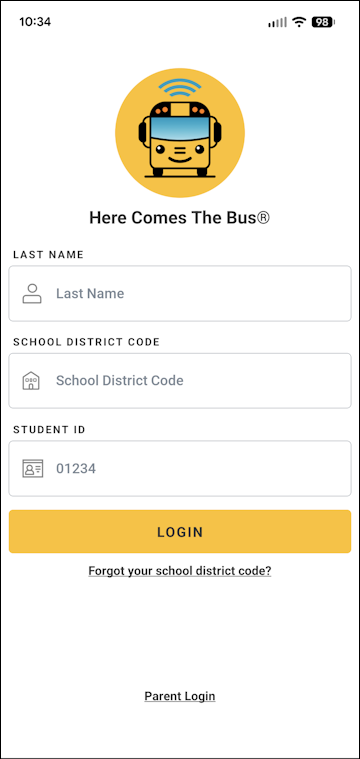
- Tap in the Last Name field and type just your last name.
- Tap in the School District Code field and type your district's code, which is usually a five-digit number.
- Tap in the Student ID field and type the ID number assigned to you by your school.
- Tap Login.
The QR code for the student ID you entered will appear. (If you previously chose the Barcode button, the bar code will be shown.)
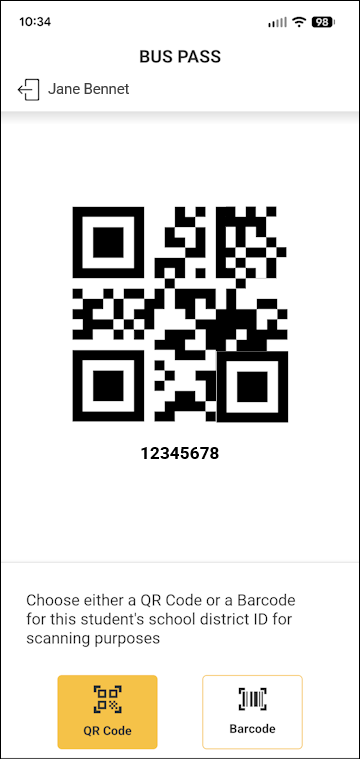
- If you need to use a bar code instead, tap the Barcode button at the bottom right.
The bar code for the ID will be displayed.
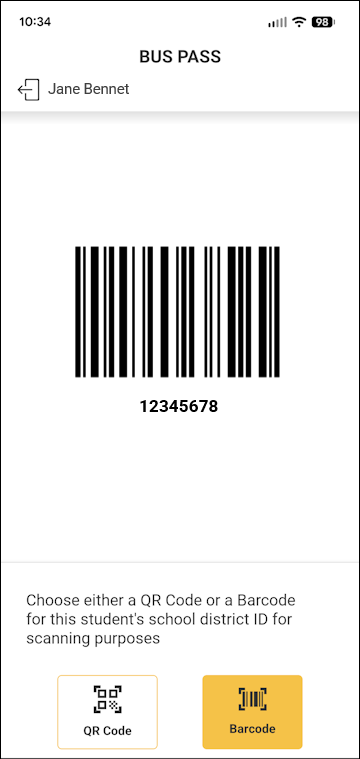
- Place the QR/bar code under the code reader on the bus, holding it there long enough for the reader to scan it (which is usually registered with a beep).
- You can tap
 at the top left to return to the student ID information screen.