
CalAmp is introducing a new version of the Here Comes the Bus (HCTB) app. Here are some of the improved features:
Note: The new app is available in Google Play and the Apple App Store.
- Improved map: The map's interface has been redesigned to have a cleaner look and feel and to provide a more user-friendly experience.
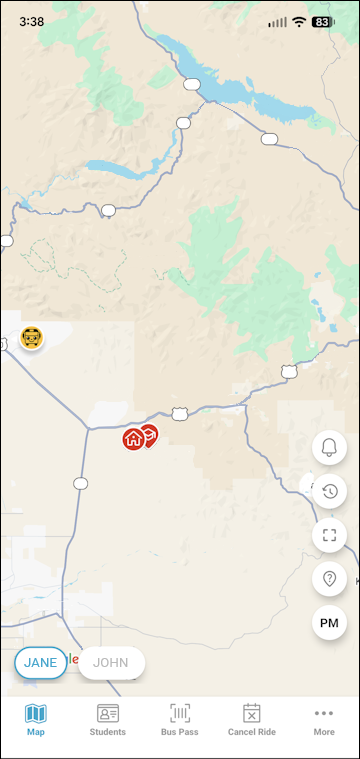
- Redesigned bus and stop icons: The new icons show your student's bus, home stop, and school stop more clearly. You can tap an icon to get information about it, such as the school name, scheduled time of arrival, and the bus's status (such as Arrived):
 : Your student's assigned bus.
 /
/ : Your student's home bus stop.
Note: If the icon is green, the stop has been made. If it is red, the bus hasn't arrived yet. This is true for the school stop as well. /
/ : Your student's school bus stop.
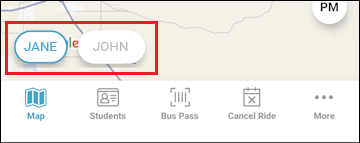
- Easier access to multiple students' bus stops: There are ovals along the bottom of the Map screen with your students' names. You just tap the oval of the student whose stops you want to see.
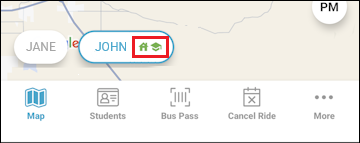
- Quick indication of bus stops made: On a student's oval, green icons will appear if the bus stop and/or school stop has been made.
- Integrated map features: The toolbar along the right side of the map provides these options:
 : Opens a list of notifications you've received over the last 14 days.
 : Launches stop data for the selected time of day (such as the PM stop), showing when the bus was scheduled to arrive and when it actually came.
 : Zooms in on your default map location (the center of the bus's location and the selected student's stops).
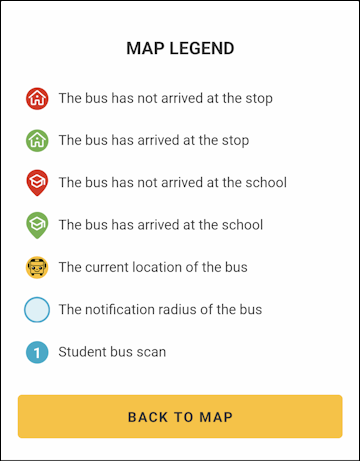
 : Displays a map legend that explains what the map icons represent.
 : Enables you to select a different route to display. By default, the current bus run will be shown (the closest to the time of day, such as AM in the morning or PM in the afternoon).
- Improved app navigation: You can easily access other app screens from any of the pages, using the buttons along the bottom. The More option pulls up more menu options, such as your user profile.

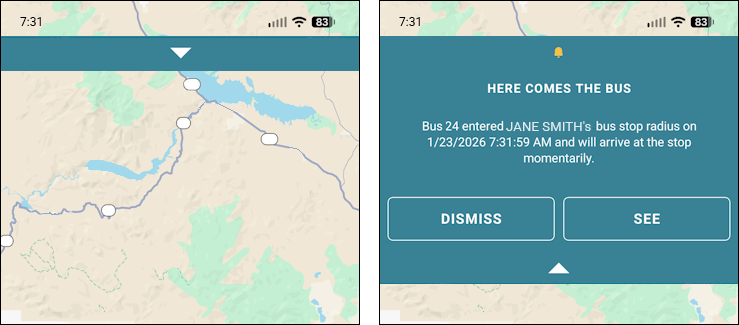
- New look for notifications: When you receive a new notification, you can swipe down on the bar at the top of the screen to show the message and then tap See to view the bus on the map.
- Ability to disable all push notifications at once: If you need to turn off all HCTB notifications (such as if your family is going on vacation), you don't need to do so one by one anymore. Now, there is a single toggle: You tap More at the bottom of the screen, tap Notifications, tap Settings, and on the Notification Rules screen, select Disable All. Then tap Save.
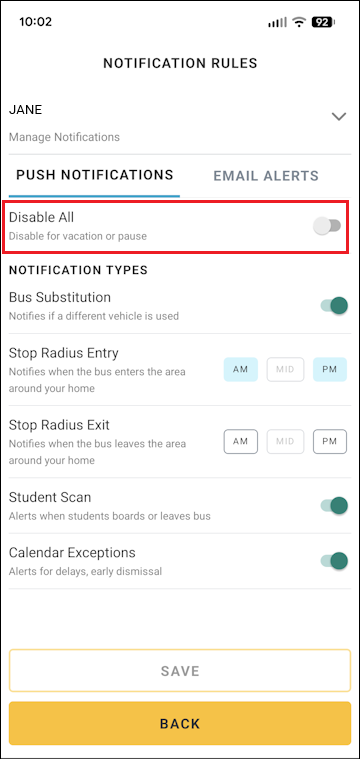
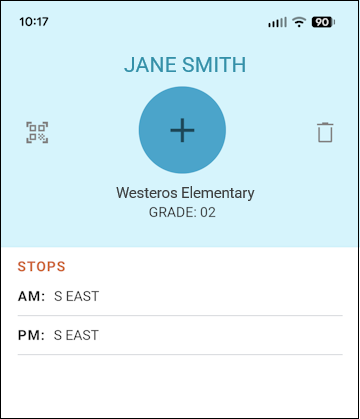
Note: If you have more than one student, you'll need to repeat that for all of them. Select your first student's name at the top and then select the second student's name to open their settings. - Student photos: You can add a photo of your student from your device by opening their profile on the Students page and selecting the + at the top.
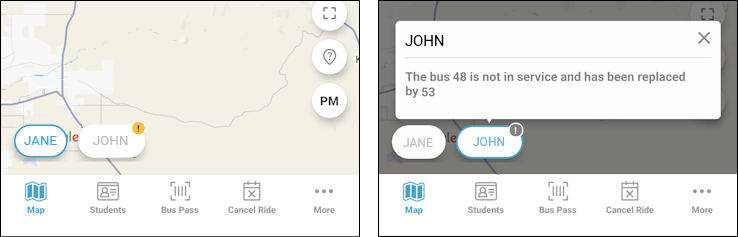
- Alerts on the map: If there is information you need for your student's route, an exclamation mark will appear on their oval icon. Tap it to see the message.
- Easier account creation: The process of creating a new HCTB account has been streamlined and made more intuitive. You can begin by tapping Sign Up on the login page.